
QR Quiet Zone & Margins: The Detail Printers Forget
The quiet zone is the empty light margin around a QR code. It is not optional decoration. When text, logos, or photo edges crowd that space, phones fail intermittently — the worst kind of print bug.
Key takeaways
- Leave a clear light margin of about four modules (four of the smallest squares) on all sides.
- Do not crop generator exports tight; this tool already includes margin — keep it.
- Busy backgrounds need a solid plate behind the entire code including the quiet zone.
- Fold lines, staples, and die-cut edges count as interference.
- When fixing “random” scan issues, check quiet zone before rewriting the URL.
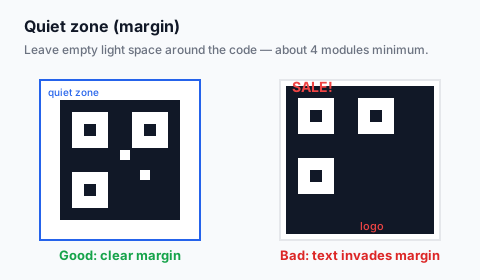
What “four modules” means in practice
If your printed code is 40 mm wide and the pattern uses a typical module size, four modules is a few millimeters of pure background — more is safer for marketing art. When designers “tighten the crop” to win layout space, they often steal exactly this buffer.
Layout rules
- Quiet zone color should match the code’s light modules (usually white / off-white).
- Never place stroke outlines that sit inside the margin.
- Stickers: leave unprinted substrate around the code or print a white square larger than the modules.
- Video and motion graphics: keep other UI chrome outside the zone for the whole hold duration.
Export cleanly
- Create the code in the generator.
- Download SVG for print or large PNG.
- Place in layout without clipping masks that shave the edge.
- Proof on the real stock; scan from the real angle.
Download a clean SVG with margin
Create free QR codeLeave the quiet zone intact in your layout tool.
FAQ
Can the quiet zone be brand-colored?
Only if it stays the light “background” relative to dark modules and contrast remains high. White is safest.
Is a border around the code OK?
A thin border outside the quiet zone is fine. A border that replaces the quiet zone is not.
Create a clean high-margin QR free
Create free QR codeNo login. Generated in your browser. Download as SVG, PNG, or JPG.